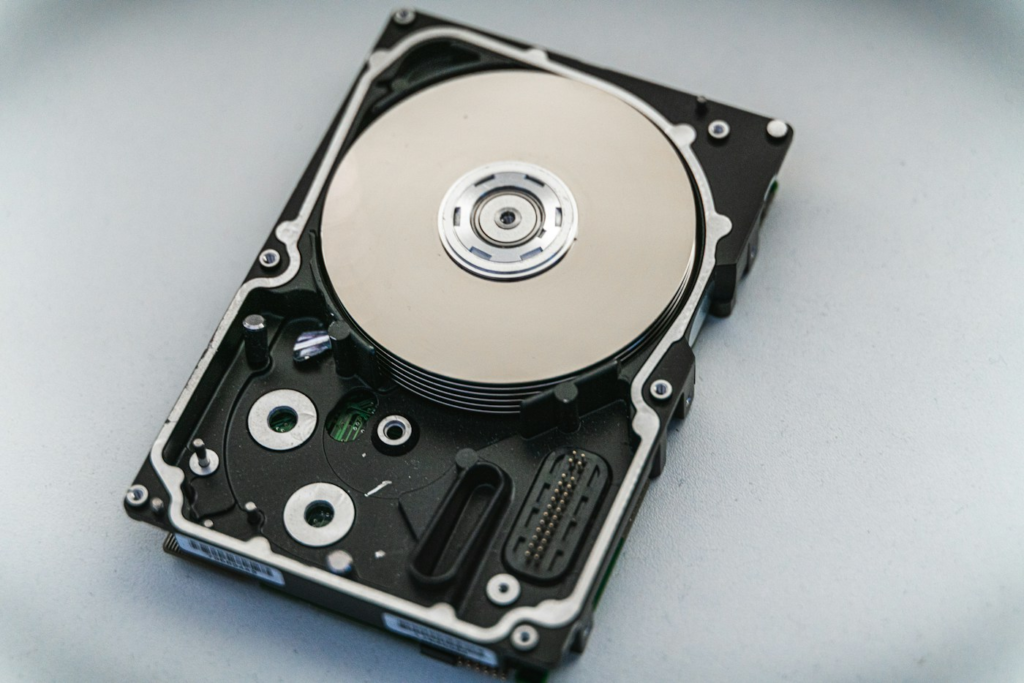
First: If a hard drive develops unusual clicking or grinding, was dropped or has physical damage, stop using it. For missing files on accessible storage, check other copies before choosing a recovery tool.
A desktop drive and a USB hard drive can both contain irreplaceable files, but “my hard drive stopped working” describes several different situations. Use the symptoms to choose what to do next.
Which situation matches yours?
- Deleted folder: stop saving new data; check the Recycle Bin or Trash and backups.
- “Format this disk” or RAW volume: do not accept the format prompt when you need the existing files. Ask whether preservation and logical recovery are appropriate.
- Clicking, grinding or repeated loss of connection: stop further tests and arrange assessment.
- Computer fails to start: separate computer repair from preserving the files.
If an external hard drive is not recognised
The cause may involve the connection, enclosure or drive. A symptom alone does not identify which. If there is no physical-damage history, unusual noise or instability, checking an obvious loose connection or the manufacturer’s power requirements may help identify a simple connection issue. Stop if the device behaves abnormally.
Do not keep moving a damaged or noisy drive between computers to see whether one eventually reads it. Do not initialise, format or run repair commands on the only copy before deciding how to preserve it.
- 01
Stop
Avoid changes to the original storage.
- 02
Check copies
Look for usable backups on another device.
- 03
Choose help
Match the next step to the symptoms.
- 04
Verify
Open the important files on a separate drive.
When recovery software is worth considering
For appropriate logical loss on accessible, stable media, a tool may locate files that are no longer visible normally. Use another drive for the software and its output. A properly made image preserves a working copy for investigation; get help if you cannot make one safely or the original is failing.
A scan finding filenames is not the same as recovering usable contents. Test important photographs, documents and archives from the recovered output. Compare software options and limitations before paying.
When to ask a laboratory
Physical damage, abnormal mechanical noise and unstable access are reasons to stop and seek assessment. A lab should explain what it can establish, the proposed work and what you owe if the result is unsuccessful. Do not open the hard-drive casing or try freezer, tapping or swapping-parts fixes.
A regular repair shop may be able to copy an intact drive or refer a specialist case. Ask who actually performs the work and whether your device leaves the shop. Use our service checklist.
Details to send for a quote
- Make, model, capacity and internal/external connection.
- What happened and any unusual sounds or messages.
- Prior attempts, drops, liquid exposure or dismantling.
- Your essential files, backups, encryption and deadline.
Compare total charges, parts, tax, transfer media and unsuccessful-job terms. Our cost guide explains published examples rather than promising a flat HDD recovery price.
Frequently asked questions
Does a format prompt mean recovery is impossible?
No. It is not a recoverability assessment. Preserve the original rather than formatting it to make it usable.
Can software fix a clicking hard drive?
No. A file-recovery tool does not repair mechanical damage. Stop using an abnormally noisy drive and ask for assessment.
Is an external HDD the same as an external SSD?
No. Confirm the model. SSD recovery has additional issues such as TRIM.
Sources and methodology
Ontrack: external HDD symptoms and connection checks; Ontrack: preserving affected media, checked 2 October 2026. The quote checklist is our editorial recommendation.
Read our editorial policy and affiliate disclosure for how we evaluate guidance, distinguish research from hands-on testing and explain commercial relationships.